A digital menu for places with guests from abroad
A menu that tellsguests what to order —in their language.
It opens in the language of the guest’s phone and suggests what goes with each dish. Add the link to Google and Yandex Maps — guests see your menu before they arrive.
See it through a guest’s eyesPoint your phone camera — the demo menu opens in your phone’s language. Open the demo — the menu opens in your phone’s language. Open the demo- Free during the beta
- Live in 1–3 business days
- No app for guests
- No POS integration
Example: the LUMA menu on a guest’s phone; the language changes automatically.


The guest journey
Guests choose restaurants on maps. Let your menu open right there
Add a MadeMenu link to your venue’s listing — guests open the menu in their language before they even arrive. The link stays the same when you edit dishes and prices.
Example: the LUMA listing on a map with a “Menu” button.

GGoogle Maps
Profile → “Menu link”
YYandex Maps
Business → “Website and social media”
- 01
Finds you on the map
In Google, it’s the “Menu” link in your profile; in Yandex, the link in your listing. Both lead to your menu in MadeMenu, not to an old photo from the reviews. - 02
Reads it in their language
The menu opens in the phone’s language: English, Russian, Armenian, Spanish, French or Georgian — whichever you enable. - 03
Sees what else to order
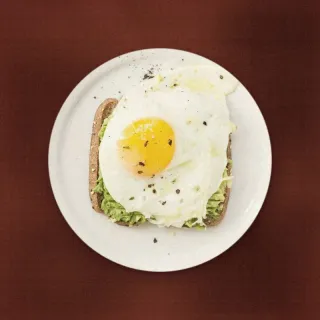
The dish card suggests what goes with it: a cappuccino with syrniki, a matcha latte with avocado toast. - 04
Leaves a review
The button in the menu and the sign at the till lead to the Google review form — fresh reviews bring in new guests.
Sales
A paper menu stays silent. MadeMenu suggests what else to order
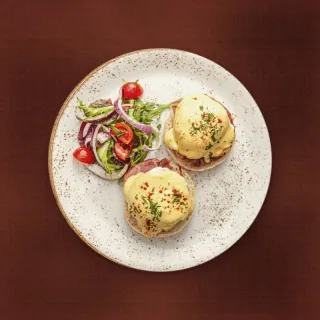
Like a good waiter: a cappuccino with syrniki, a flat white and a croissant with eggs Benedict. You choose the pairings, MadeMenu shows them on the dish card, and the guest builds “My list” and shows it to the waiter.
- 01“Perfect pairings” — suggestions for every dish; you choose the pairs
- 02“Recommended” and “New” — highlight the dishes you want to sell
- 03“My list” — the guest’s basket: they collect dishes and show the screen to the waiter. Service stays the same: no POS integration and no fees
- 04See what works — analytics counts every suggestion: shown → opened → added
Tap “+” in the suggestions — the “My list” total updates.
Example: a “Leave a Google review” button on the venue card in the menu, with a QR sign for reviews next to it.
Google reviews
Fresh reviews bring in new guests. Ask for them at the right moment
The best time to ask for a review is while the guest is still with you. The button in the menu and a QR sign at the till, on the receipt or on the table open the Google review form for your venue right away.
- 01Button in the menu — on the venue card, next to opening hours and Wi-Fi
- 02QR sign — a ready-made layout for the till, receipt or table, in your venue’s colours
- 03See what works — how many visits the button and each sign brought
Every guest sees the button and the sign the same way — no “did you enjoy it?” question and no rewards for reviews, as Google’s rules require.
Getting started
Don’t retype your menu. Upload a file — AI does the rest
PDF, a phone photo or Excel: MadeMenu AI recognises dishes and prices, sorts them into categories and keeps the translations already in your menu. For other languages, use the “Translate with AI” button. You review and publish — guests see nothing until you confirm.
- 01
Upload a file
PDF, a phone photo or Excel — the menu you already have will do. - 02
Review and style it
Fix the details, add photos, choose languages and a style. - 03
QR codes on tables, a link on maps
Put QR codes on your tables and add the link to Google and Yandex Maps.
Rather not do it yourself?
Send us a PDF or photos — during the beta we’ll build your menu in the languages you need for free, in 1–3 business days.Analytics
See what guests look at — and what they couldn’t find
How many guests opened the menu and in which languages, which dishes they view and add, what they searched for and didn’t find. Menu decisions based on numbers, not guesswork. No cookies and no tracking of guests.
Below is demo data for the fictional LUMA.
Dashboard
Your menu stays up to date — no reprinting
Hide a dish in one click
Sold out? Hide the dish so guests don’t choose what you don’t have.
Draft and publishing
Edit calmly — guests see the changes once you publish.
7 themes in your venue’s style
From warm light ones to dark ones — for example, “Midnight” and “Burgundy”.
QR codes in your venue’s colours
Layouts for tables, the entrance and posters, plus a code for every table.
Beta and pricing
Free for now. We’re onboarding the first venues
MadeMenu is in beta: we’re launching our first venues and setting up their menus for them. Everything already in the product is free — within the beta limits.
Menu
- 1 venue, up to 100 dishes
- 3 of 6 languages
- A map link and QR codes for tables
AI
- AI menu import from PDF and photos
- AI translation into your guests’ languages
Sales
- Dish recommendations
- “My list” — the guest’s basket
Reviews and analytics
- Button and QR signs for Google reviews
- Detailed analytics and tips
Design
- Themes in your venue’s style
- QR codes in your venue’s colours
Coming soon
- AI dish descriptions
We’ll do it for you
- We’ll digitise and translate your menu from PDF, photos or Excel — in 1–3 business days
- We’ll help add the link to Google and Yandex Maps
- We’ll prepare print-ready QR sign layouts — for tables and the till
What we ask in return
- Use the menu with real guests
- Tell us what gets in the way and what’s missing
After the beta
- Paid plans will appear — for single venues and for chains
- We’ll announce prices in advance; beta participants will hear first
- No commitment: you decide whether to switch to a plan — nothing is charged without your consent
- Your menu, translations and QR codes will be kept
Questions and answers
Frequently asked questions
Didn’t find an answer? Write to us — we’ll help you launch.
Your Google Business Profile has a “Menu link” field — paste your MadeMenu link there. In Yandex Business you can add it under “Website and social media”. The link stays the same when you edit the menu. During the beta we’ll help you set it up.
A typical QR menu is a PDF or a list of dishes. MadeMenu opens in the language of the guest’s phone, suggests what goes with each dish and shows how many items were added from suggestions. The link works in Google and Yandex Maps, and Google review signs count visits from every spot. During the beta we’ll set up your current menu for free.
No. Upload a PDF, photos or Excel — AI recognises dishes and prices, sorts them into categories and keeps the translations from your menu. For other languages, use the “Translate with AI” button. You review and publish. During the beta we can set up the menu for you.
You do. You see every translation and can fix any word. AI translations are marked for you to review, and guests see them only after you publish.
No. You can publish the menu without photos and add them gradually — phone shots will do. Start with the dishes you want to sell.
1–3 business days after we receive the menu, depending on the number of items. We stay in touch the whole time and show you the result before publishing.
The menu as a PDF, photos or Excel and a list of languages. If you like, send your venue’s Google Maps link — we’ll help add the menu there.
On upload, AI translates new dishes into your main language and keeps the translations printed in your menu. The “Translate with AI” button in “Languages & translations” translates the other languages and never changes your own translations. After edits, press it again — edits aren’t translated automatically yet.
No, and that’s on purpose: no POS integration is needed and there are no fees. The guest builds “My list” and shows it to the waiter — it’s easier to communicate without a shared language, and you take the order as usual.
No. MadeMenu works alongside it: the QR code on the table and the link on maps lead to the menu in the guest’s language, and you can keep the paper menu.
No. The guest scans the QR code or opens the link in your map listing — the menu opens right in the phone’s browser.
English, Russian, Armenian, Spanish, French and Georgian. During the beta — up to 3 of the 6. The menu opens in the language of the guest’s phone, and guests can switch the language manually.
No. No sign-up and no cookies, and we don’t store IP addresses. We count anonymous actions in the menu so you can see what guests view and search for.
It’s free for now: one venue, up to 100 dishes and 3 languages. After the beta, paid plans will appear — we’ll announce prices in advance, and beta participants will hear first. No commitment: you decide whether to switch to a plan, and your menu, translations and QR codes will be kept.
Onboarding our first venues
We’ll set up your menu for you
Leave a request — we’ll get in touch, take your menu as a PDF or photos, build it in the languages you need and prepare QR codes for your tables and a link for Google and Yandex Maps.
Not sure yet? Paste your venue’s Google Maps link into the “Message” field — we’ll check for free how guests see it and suggest what to improve.